The main window & menus
The window
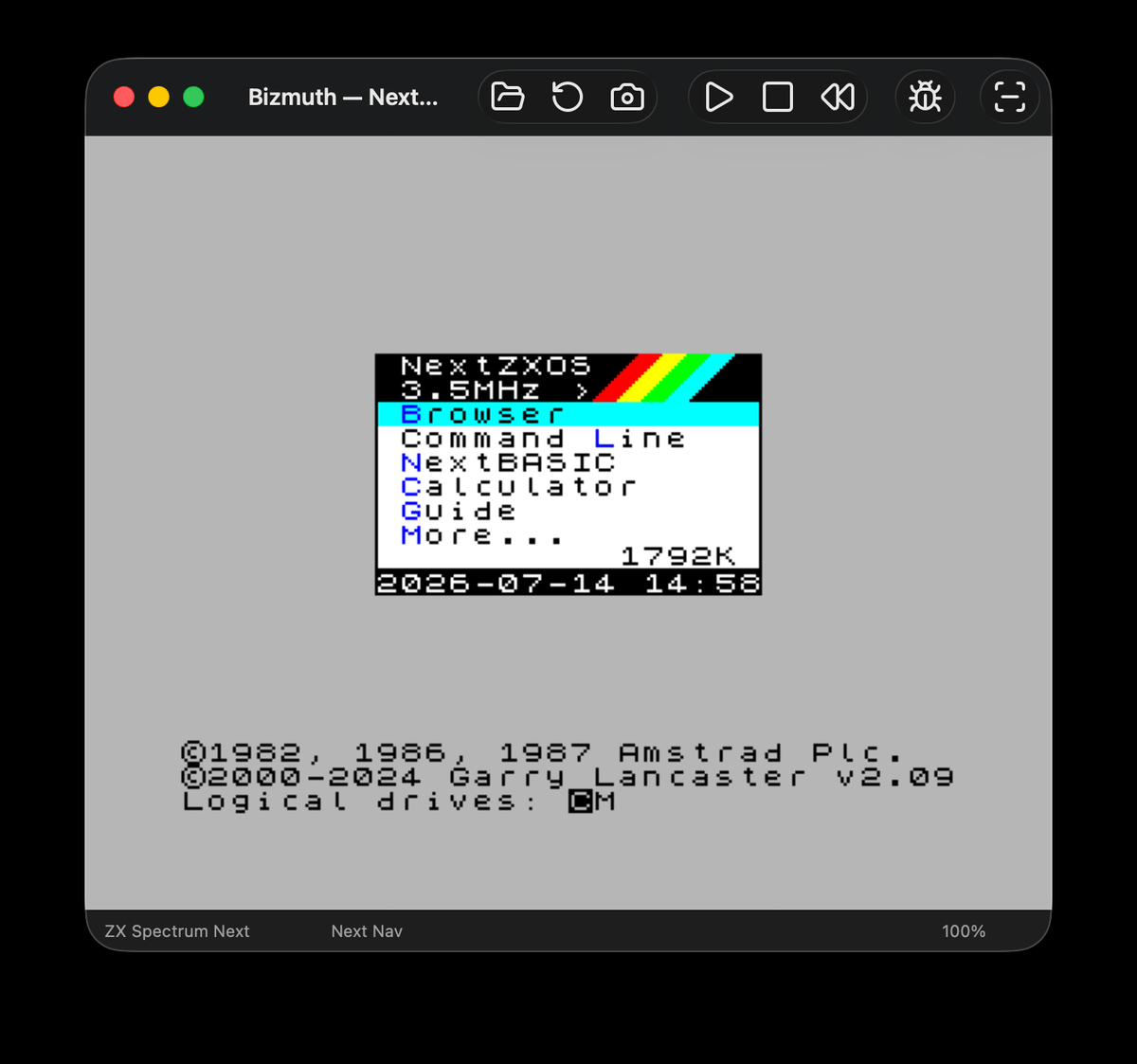
The Bizmuth window shows the emulated display. The title bar reports the current machine and speed, and an optional status bar along the bottom shows tape/disk activity. Toggle it from View → Status Bar.
The menu bar
Seven top-level menus — File · Machine · Media · Input · View · Debug · Help:
| Menu | What it does |
|---|---|
| File | Open a file (Ctrl+O), Save Screenshot (Ctrl+S), Preferences (Ctrl+,), Reset (Ctrl+R), Exit (Ctrl+Q). |
| Machine | Choose the machine (48K / 128K / +2A / +3 / Next) and trigger the Next core hotkeys. |
| Media | Removable media, each a submenu: SD0 / SD1 (Next card slots), Tape, Disk (+3). |
| Input | The classic joystick interface and Capture Mouse. |
| View | Scale (1×–4×), Maintain Aspect Ratio, Status Bar, Sprite RAM viewer, and Full Screen (Windows/Linux). |
| Debug | The debugger — see the Developer Guide. |
| Help | About Bizmuth. |
On macOS, Preferences and About sit under the application menu (as is standard), and full screen uses the native green-button control rather than a View item.
Next core hotkeys
While emulating the Next, a set of function-key shortcuts trigger the machine’s own controls. To keep them distinct from the bare-F-key debugger shortcuts, they all carry a modifier — ⌘ on macOS, Ctrl on Windows, Shift on Linux (written mod below):
| Hotkey | Action |
|---|---|
mod + F1 | Hard reset |
mod + F2 | DivMMC NMI menu (needs nextreg $06 bit 4) |
mod + F3 | Toggle 50 / 60 Hz |
mod + F4 | Soft reset |
mod + F7 | Cycle CRT scanlines (off / 25 / 50 / 75 %) |
mod + F8 | Cycle CPU speed (3.5 / 7 / 14 / 28 MHz) |
mod + F9 | Multiface NMI (needs nextreg $06 bit 3) |
(These also appear in the Machine menu.) The bare function keys are separate: F1 toggles the debugger, F5/F8/F10 are pause/step/step-over, and F11 toggles full screen (Windows/Linux).