Installation & first run
Install
Download Bizmuth for your platform from the Downloads page:
- macOS — open the
.dmgand drag Bizmuth to your Applications folder. It’s signed and notarised, so it opens without a Gatekeeper prompt. - Windows — run the installer (
.exe), or unzip the portable.zipand runbizmuth.exe. - Linux — the portable
.AppImage(chmod +xand run), or install the.deb(Debian/Ubuntu) or the Arch package.
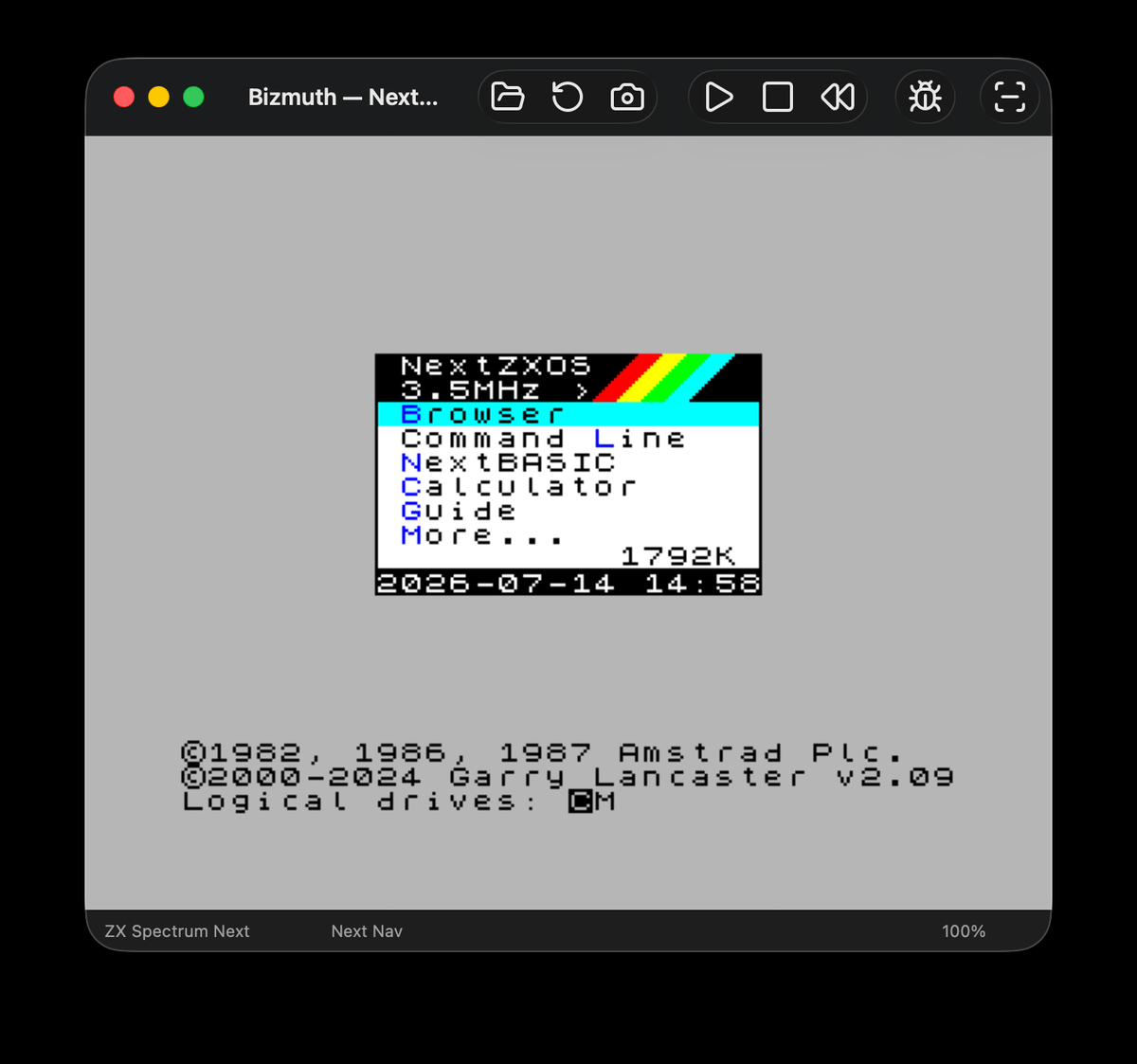
First run — the setup assistant
To run software, Bizmuth needs the Spectrum ROMs and (for the Next) a NextZXOS SD card image. The first time you launch it with nothing configured, a first-run assistant offers to set that up:
- Download the starter pack — fetches the Spectrum ROM pack and a ready-to-run NextZXOS SD card image (including the Next host ROM) into a folder you choose, and remembers the paths.
- Locate existing files — point Bizmuth at a folder where you already have them.
Your choices are saved to the config (~/.bizmuth/config.json), so every later launch goes straight to the machine. You can change the paths anytime under Preferences → Media.
Setting up manually
Prefer to do it yourself? Grab the ROM pack and SD image and put the ROM files in your configured ROM folder, with these exact names:
| Machine | ROM files |
|---|---|
| 16K / 48K | 48.rom |
| 128K | 128-0.rom, 128-1.rom |
| +2A / +3 | plus3-0.rom, plus3-1.rom, plus3-2.rom, plus3-3.rom |
| ZX Spectrum Next | tbblue_loader.rom (bundled with the SD image download) |
If a required ROM is missing, Bizmuth shows a “No ROMs!” screen naming the files it needs — and, on a fresh install, re-offers the setup assistant.
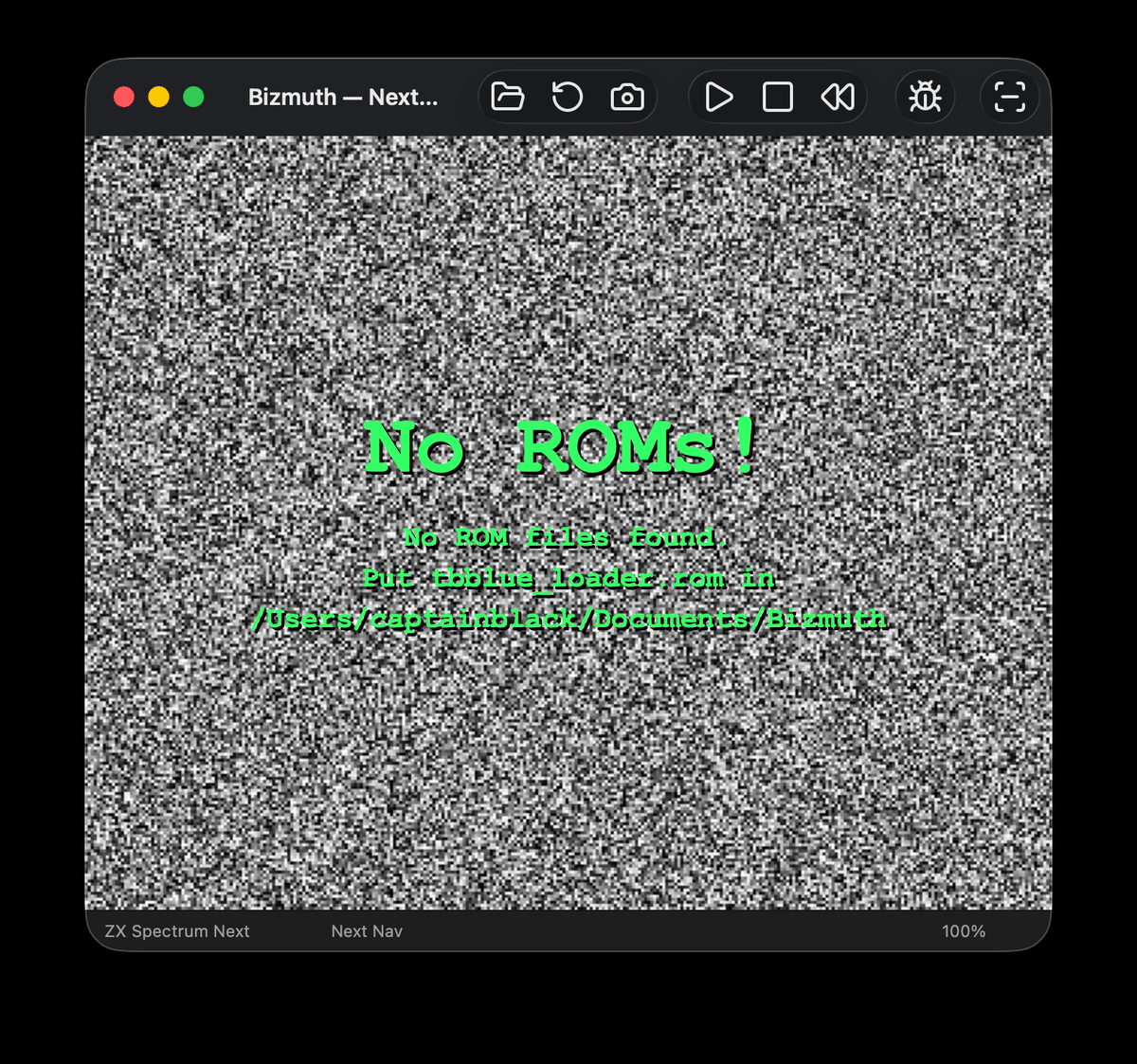
The Next also needs the SD card image to boot NextZXOS. The starter pack includes a ready one; see SD cards & NextZXOS for pointing Bizmuth at a different image.
Choosing a machine
By default Bizmuth emulates the ZX Spectrum Next and boots NextZXOS from the SD image.
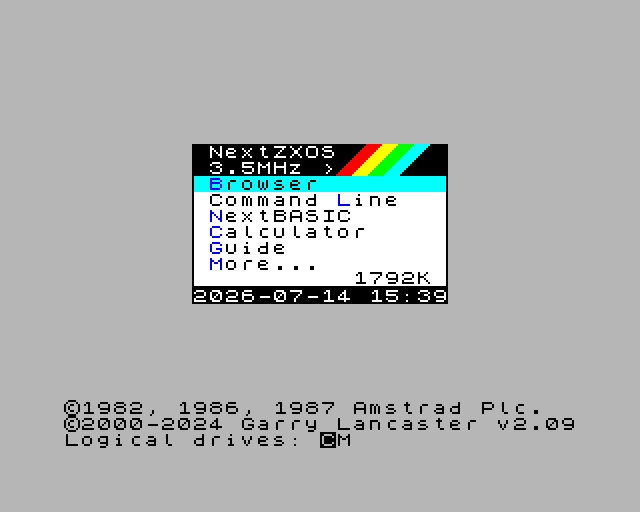
To choose a different machine, use the Machine menu — see Machines.